


Both the General Training and Academic IELTS tests are available as IELTS on computer. You will complete the Reading and Listening sections on a computer, and you can choose to complete the Writing section either on a computer or on paper by selecting IELTS Writing on paper when booking your test.
Whether you choose to complete the Writing section on a computer or on paper, the test content, question types and time allocated for each section remain the same. The only difference is how you complete the Writing section on test day.
Here is a step-by-step guide on how to create an IELTS account, login to your account and book IELTS on computer:
Step 1: Visit the test reservation page and choose your preferred IELTS on computer test, then click on “Book Now”.

Choose your preferred test type according to your goals.

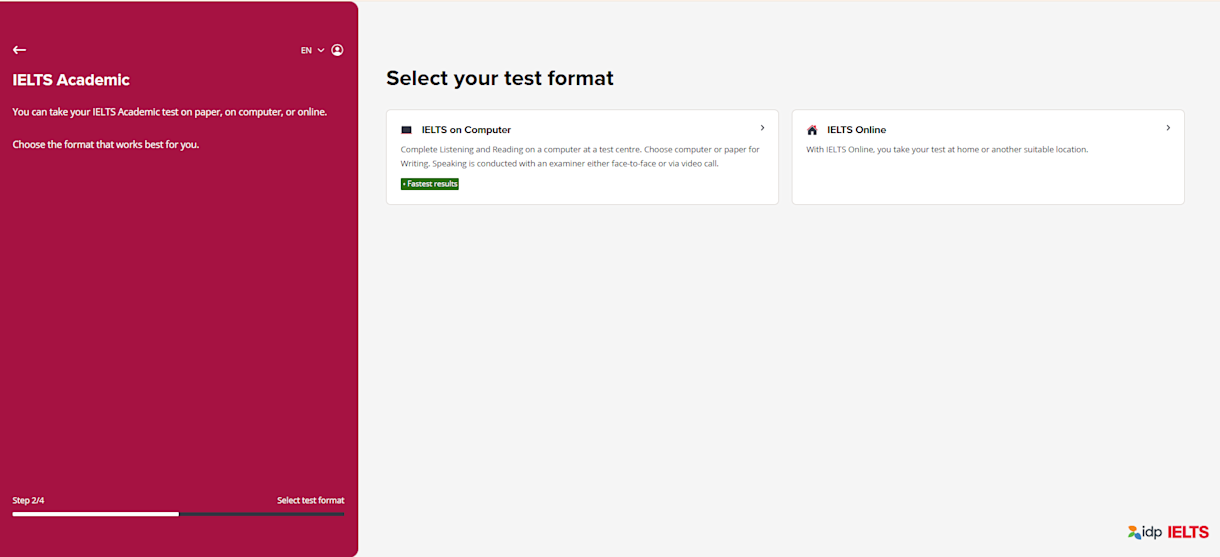
Choose the IELTS on computer test format.
Choose your country and city, then click “Select test date”.

Select your preferred date or date range, then click “Find sessions”.

Select your Listening, Reading and Writing parts of the test.

Confirm your test dates and timings or click “Change” if you want to change any of the chosen dates and timings, then click “Continue”.

Click on “I agree to the Terms and Conditions”, then click on “Log in and complete your booking”.

Sign up or log in using your email.

Finalise payment. You can choose to pay online or offline at any of the IDP offices.
Online payment.
You will be redirected to the payment portal. Click on “Confirm and pay”.

You will be asked to enter your credit card details and finalise the payment.

Then you’re all set for your test day!
Offline payment.
Select your preferred offline payment method and proceed.

Once you select your preferred offline payment method and click on it, you will then be redirected to a screen with three important steps, make sure to read the instructions carefully and then click on “Continue”.

Once you click on “Continue”, a reference number will appear.

When you receive the booking reference number, you may utilise it with your payment option. The booking reference number confirms your booking of the IELTS on computer test.
Once you click on “Complete your reservation”, your booking journey is completed, and you are ready for your test day!
Note: You can also book your IELTS for UKVI test through the same link. Make sure you select the IELTS for UKVI test option and you will be going through the same process.
If you still have any questions, you can always reach out to our IDP IELTS team!